
Tasks in Intuit Enterprise Suite are a great organizational tool that can help keep your business on track. It can remind you of important deadlines for customer contacts, payroll due dates, tax filings, and more.
About Tasks in Intuit Enterprise Suite
Tasks can be tracked with reminder dates, assigned to team members, and have documents attached and forms linked for quick reference.
How to Access Tasks
From the top right of your screen, you will see a clipboard with a checkmark. Click on this icon to open tasks.

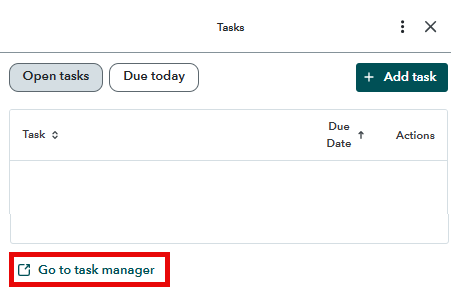
Tasks will open a window on the right of your screen. Clicking on “Go to task manager” at the bottom of your screen will open a full-screen view.
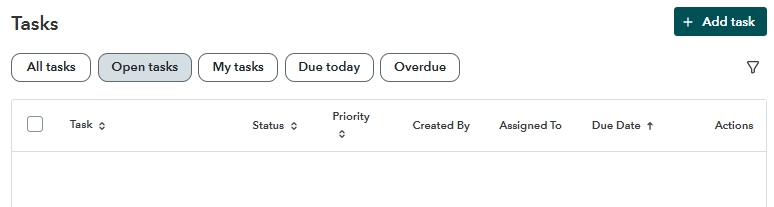
The full-screen view (shown below) allows you to manage tasks and reminders with ease. Create new tasks, filter for task status, priority, due date, and more.
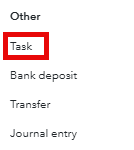
You can also open tasks by selecting the Create icon on the left of your screen. Tasks are listed in the Other column.
Creating a New Task
Select the Add Task icon on the right.
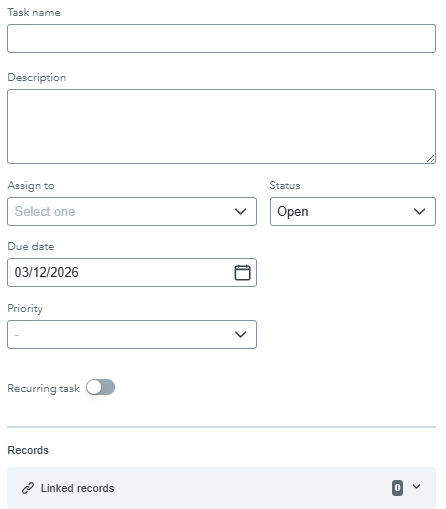
You will then see the new task screen.
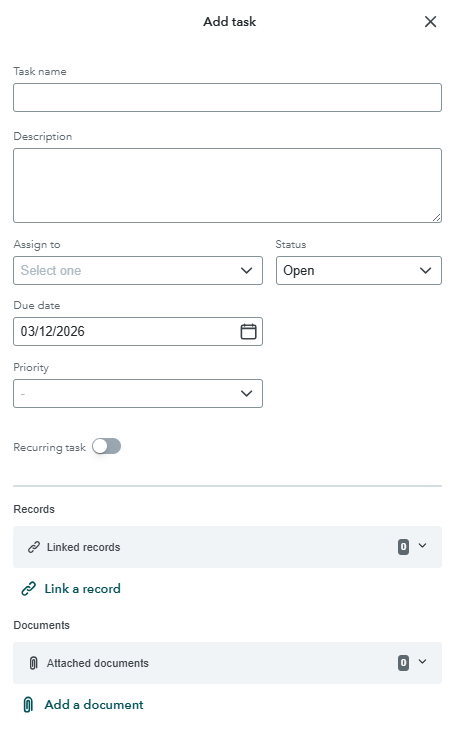
Enter a task name; a description is optional. The task must be assigned to a team member (even if it is yourself). Status options include open, in-progress, and completed. Priority options include low, medium, high, and urgent.
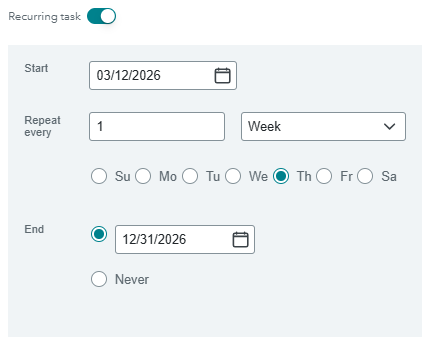
Selecting Recurring task opens an additional input panel (shown below). You may create a recurring task for a day, week, month, or year.
Linking a Record to a Task
When creating a task, a form such as an estimate or invoice can be linked for quick reference. This is shown at the bottom of the task creation window.
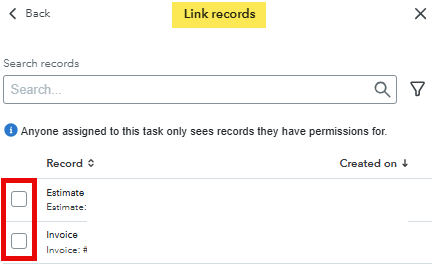
Once linked, you will see the form or forms listed below the task. The links include the form number, amount, and customer or vendor name.

Attaching Documents to Tasks
Documents can be attached for quick reference using the following window:
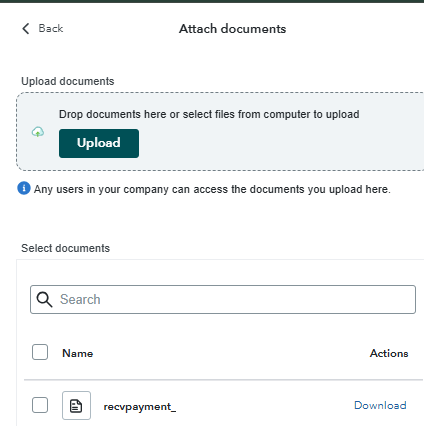
Documents can also be dragged into the upload box.
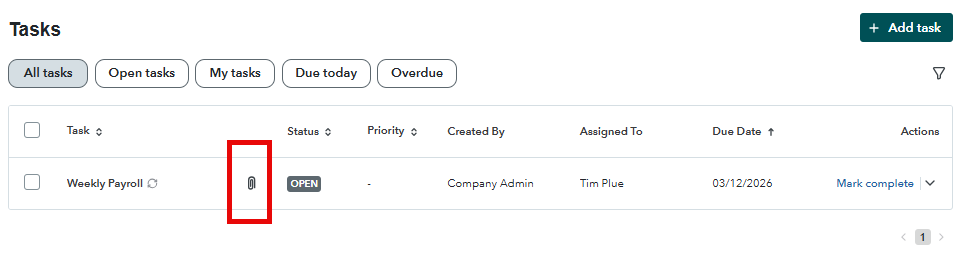
Once completed, you will see a paperclip next to the task.
How to Filter Tasks in Intuit Enterprise Suite
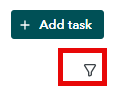
Tasks can be filtered in many ways. Begin by clicking on the funnel icon.
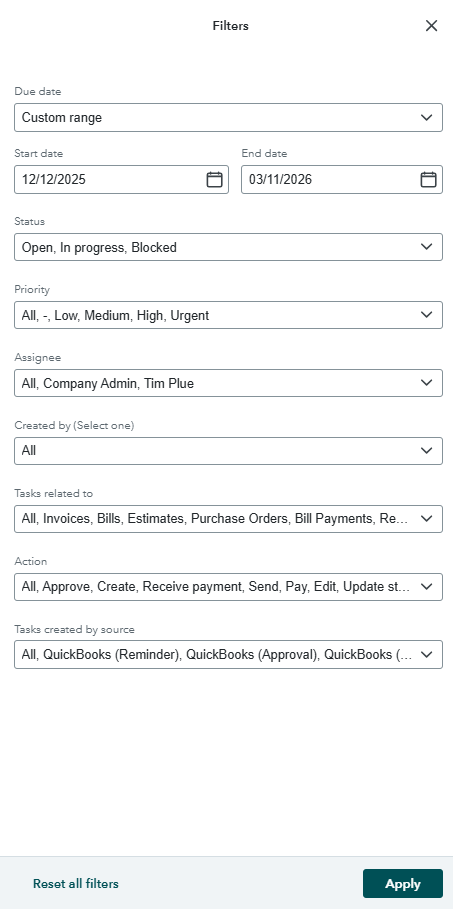
A new Filters window will open, giving you a range of options to find specific tasks.
Why use Tasks
It might not seem high-tech, but something so simple can help keep your business on track. It can remind you of important deadlines for customers, payroll, tax filings, and more. Even better, instead of having to open a separate third-party app, tasks are built right into the Intuit Enterprise Suite.