

The ability to print barcode labels in QuickBooks Enterprise is a very useful feature for many businesses. Barcoding can help improve accuracy when both shipping and receiving inventory. New for 2021, there is also a great new feature that allows the default item price to be added to the barcode label.

If you are not currently barcoding with QuickBooks Enterprise, you may activate this feature in preferences:
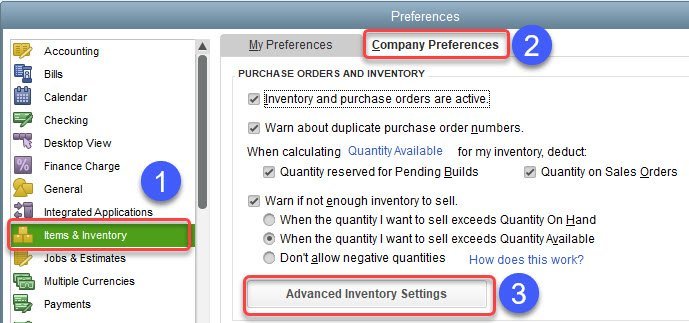
First, from the menu at the top, select Edit > Preferences. Then Items & Inventory > Company Preferences > Advanced Inventory Settings.
You will then see the Advanced Inventory Settings Window. Select the Barcodes tab and check the box to Enable Barcodes.

Now what? What did QuickBooks do? It has added a new field in the Item setup screen. When you first turn on the feature, the barcode numbers will be blank. QuickBooks Enterprise can automatically create the barcodes and update this field.
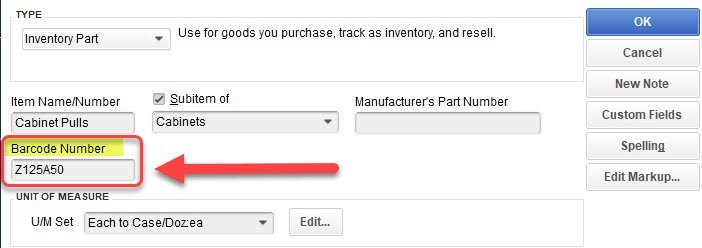
Once you have created barcodes for your items, you can print barcode labels in QuickBooks.
How to Print Barcode Labels in QuickBooks Enterprise
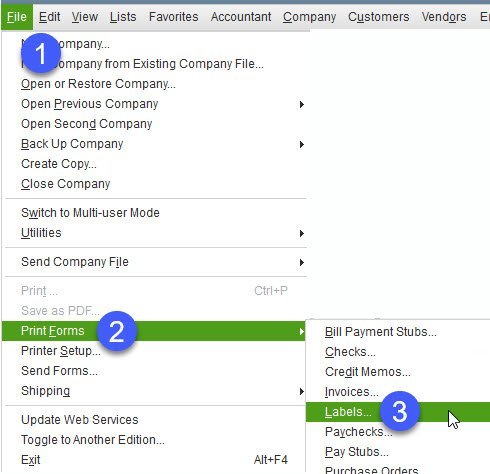
The new feature for 2021 (V21) is shown at the bottom of the screen below. The Select Labels to Print screen now has an option to “Include item sales price.”

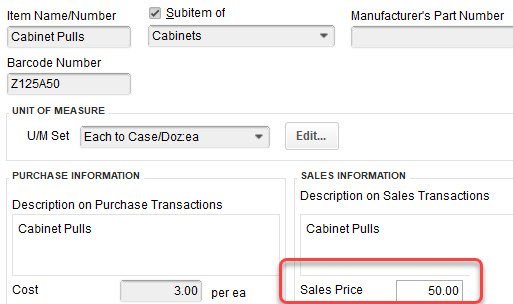
Once a default sales price is entered on the item record, it can now be printed on a barcode label.
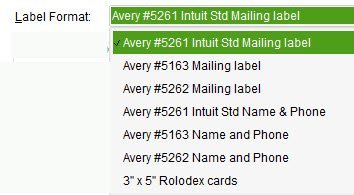
The next screen will allow you to choose from a variety of labels.
If you are using the barcoding feature in QuickBooks Enterprise, you are now able to add the default sales price to a printed barcode label. Here is an example of the updated format: